Getting started
How to import your ResMed data
Your AirSense stores its therapy data on a small SD card. Here's how to get it into the app in four steps – it takes about five minutes.
You'll need
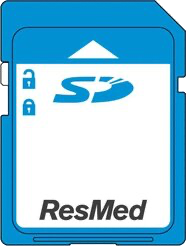
Your ResMed SD card
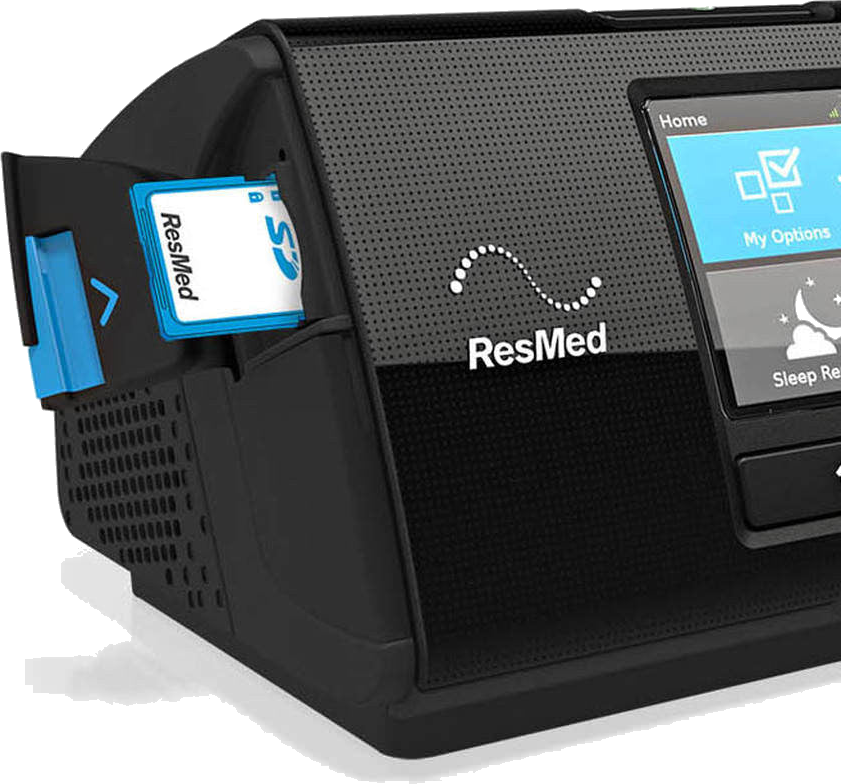
It lives in a slot on the side of your machine.
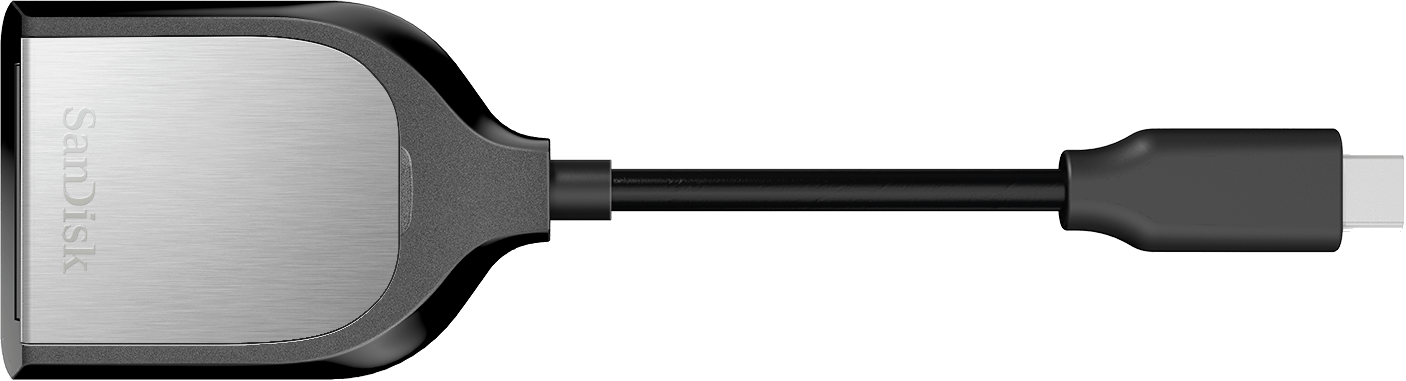
An SD card reader
USB-C for iPhone 15+, Lightning for 14 and older. The one we recommend.

Your iPhone & the app
CPAP Analysis, free on the App Store.
Get the card
Take the SD card out of your machine
Open the flap on the right-hand side of your AirSense 10. Push the SD card gently inwards until it clicks, then let go – it springs out. Slide it the rest of the way out.
Connect it
Plug the card into your iPhone
Slide the ResMed card into your SD card reader with the label facing up, then plug the reader into your iPhone's charging port.

Open the app
Start the import in CPAP Analysis
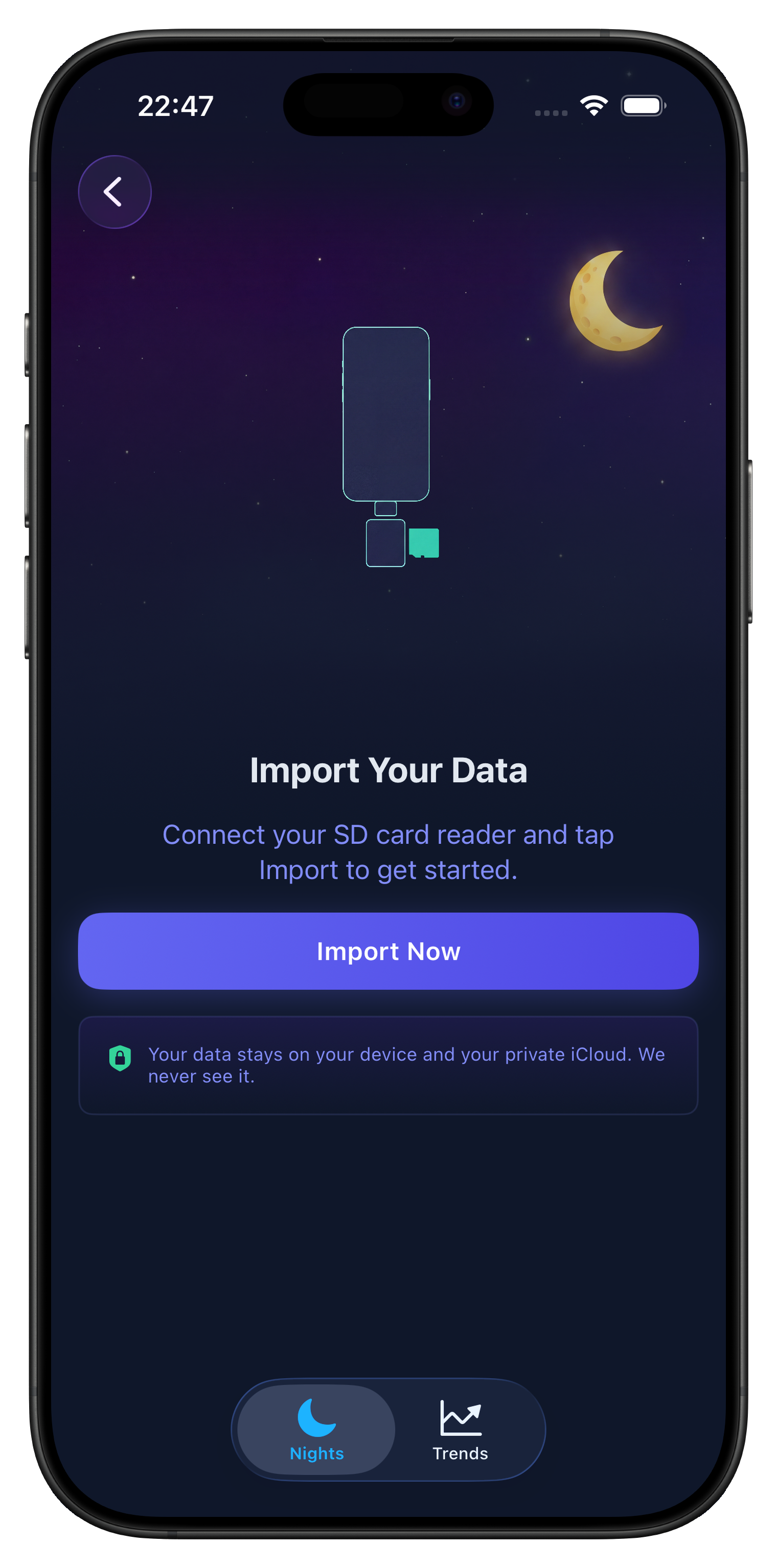
Open CPAP Analysis and tap Import Now to open the file browser.
Choose the folder
Select the SD card – not a folder inside it
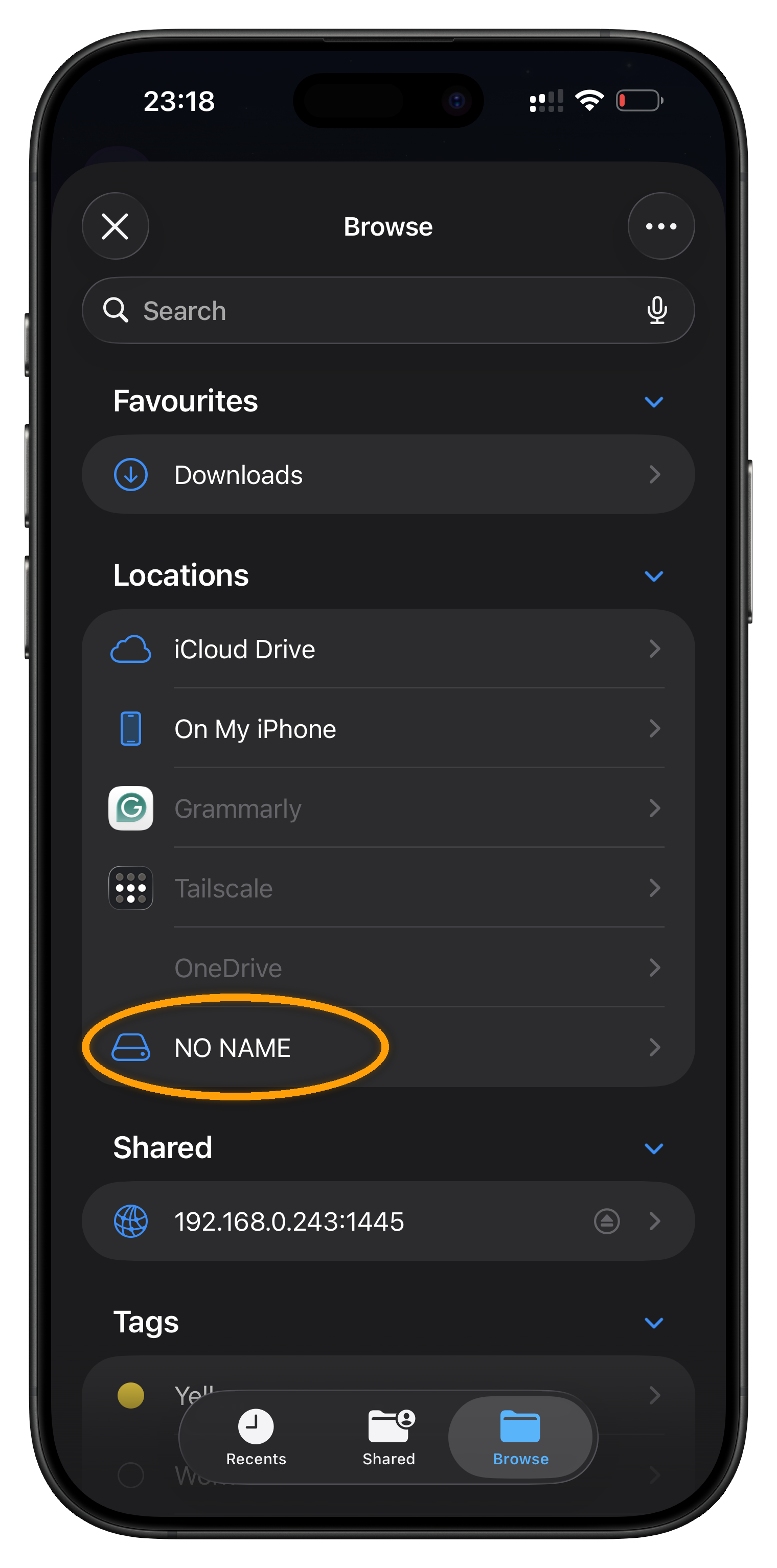
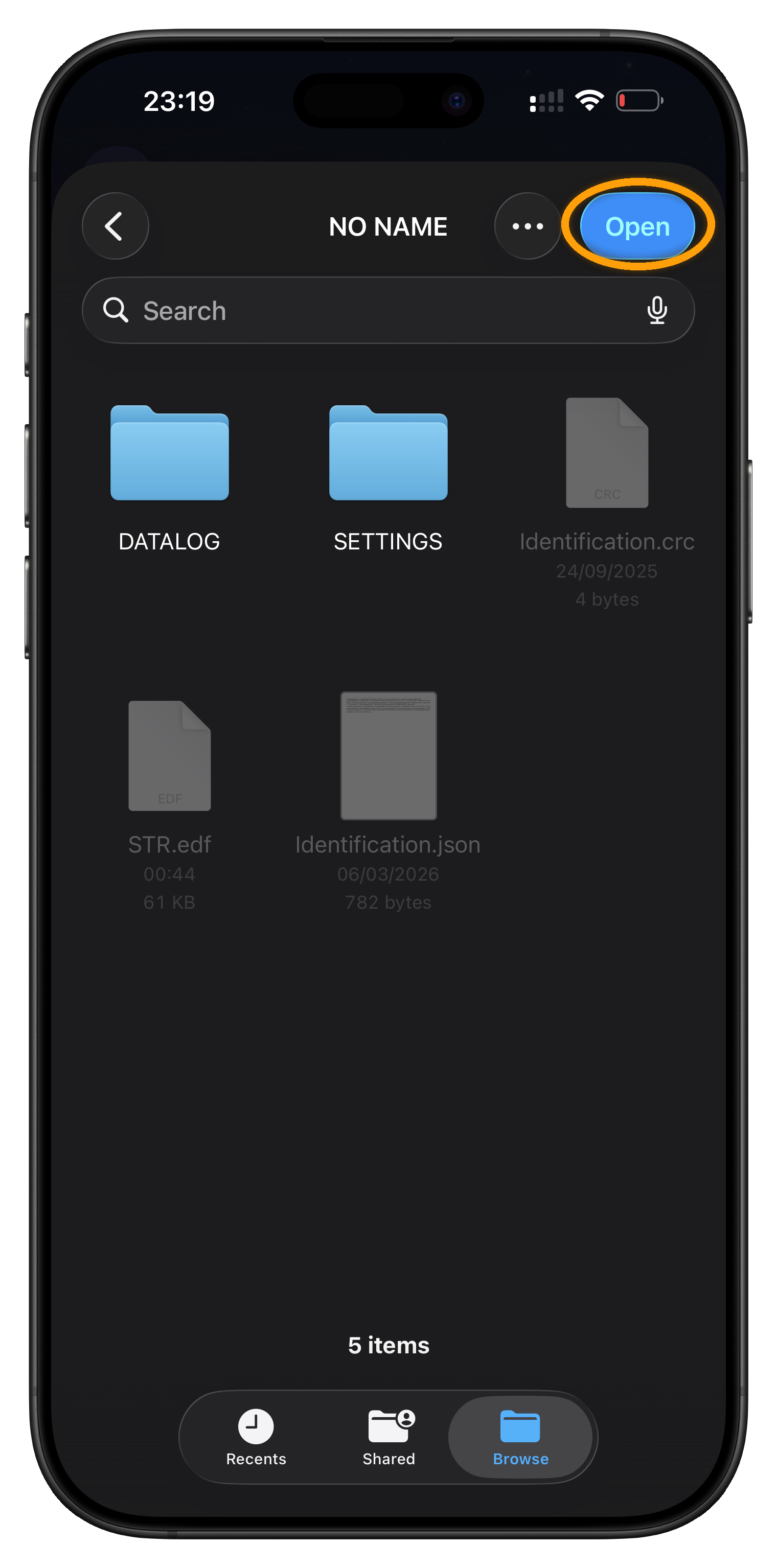
Under Locations, tap NO NAME – that's your SD card. You'll see folders like DATALOG and SETTINGS; just tap Open at the top. Don't open the DATALOG folder itself.
Your data stays safe. CPAP Analysis is strictly read-only – it never changes or deletes anything on your SD card, so your data remains intact for your doctor.
Still stuck?
Email us a screenshot of the file browser and we'll point you straight to the fix.
Email hello@cpapanalysis.comOr browse the full support page.